
When your PC won't boot and all you hear is a series of mysterious beeps, don't panic, that's just your motherboard trying to tell you exactly what's wrong. These beep codes are emitted during the startup process of your PC, also known as a POST (Power-On Self-Test), they are your computer's way of signaling hardware issues before anything appears on screen.
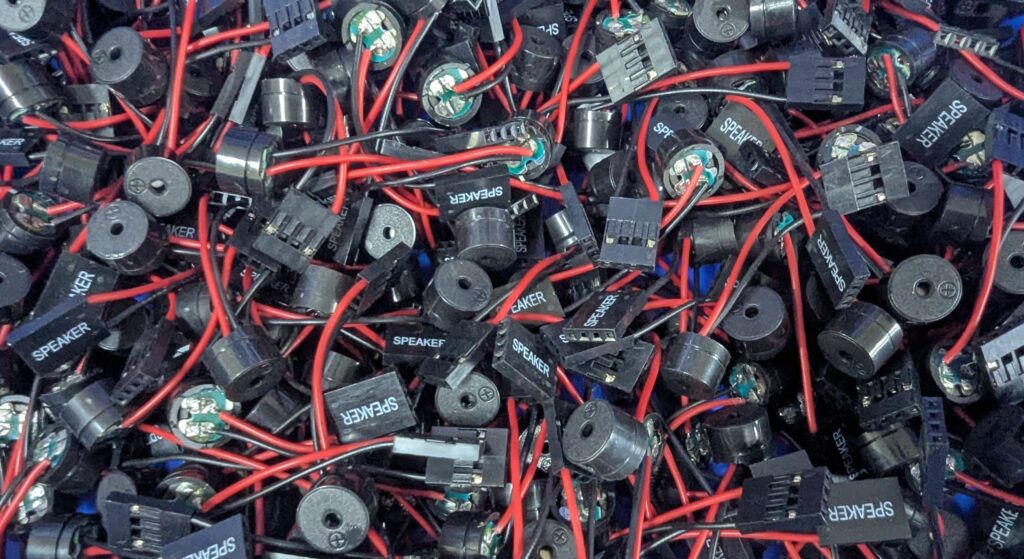
All brands of Motherboard will have some form of these audible alerts, whether you're using an Asus, Gigabyte, ASRock or MSI motherboard. These alerts can help you diagnose issues like GPU problems, faulty RAM or even a failing power supply. While most manufacturers follow standardised beep codes, some brands have their own slight variations. Some newer Motherboards are coming out without support for diagnostic speakers, but should have their own diagnostic LEDs or similar, probably best to consult the manual to decode these as they are not standardised at all.
In this guide, we'll break down the most common beep codes by popular motherboard brands, explain what they mean, and even show you how to do some simple troubleshooting. By the end, you'll be able to decode those cryptic beeps and possibly even get your system back up and running!
1 - WHAT ARE MOTHERBOARD BEEP CODES?
When you turn on your PC, the motherboard performs a series of critical checks called Power On Self Test, or POST. These diagnostic processes verify that essential hardware components are functioning as expected, before booting the Operating System.
If the POST encounters a problem, it isn't possible to display an error message on the monitor because the graphics card may not be working yet. Instead, it uses a series of audible tones from a small internal speaker connected to the motherboard, these tones are usually known as beep codes.
These beep codes are important because they act as a first clue as to what might be wrong with a PC you're trying to troubleshoot, they come in very useful when you're trying to diagnose a problem with a PC that won't display anything on the screen, powers on but doesn't boot, or crashes immediately after startup.
80% of Motherboards still support a diagnostics speaker, but cases no longer come with them. Writing this I'm realising that it's a bit strange that it was always the case that came with the speaker, and not with the Motherboard. Definitely left over from the days where your diagnostics speaker was built directly in to the case! At UK Gaming Computers, we install a motherboard speaker to all of our builds, even if the case doesn't come with one.
There are a few modern alternatives to the old-school beep codes, most board will have diagnostic LEDs, usually to the right of the RAM slots. These will have different LEDs for each component that is being checked in the Power On Self Test. Q-Code displays are also a feature on higher end Motherboards, this is a two-digit error readout that can tell you exactly what is wrong.
2 - DECODING BEEP CODES BY MOTHERBOARD BRAND
Now, that's enough explanation, time to explain what the beep codes actually mean! Most manufacturers follow an industry standard for these diagnostic codes, some brands implement their own variations. Below, we'll break down the most common beep code patterns for major motherboard manufacturers.
ASUS MOTHERBOARD BEEP CODES
- 1 short beep > Normal POST, everything is working!
- 1 long, 2 short beeps > Indicates a memory error, for troubleshooting tips click here.
- 1 long, 3 short beeps > Indicates a VGA (GPU) error, for troubleshooting tips click here.
- 1 long, 4 short beeps > Indicates a CPU Fan, CPU Temperature or CPU Over Voltage Error, for troubleshooting tips click here.
GIGABYTE MOTHERBOARD BEEP CODES
- 1 short beep > Normal POST, everything is working!
- 1 long, 2 short beeps > Indicates a memory error, for troubleshooting tips click here.
- 1 long, 3 short beeps > Indicates a VGA (GPU) error, for troubleshooting tips click here.
- 1 long, followed by continuous short beeps > Indicates a CPU Fan, CPU Temperature or CPU Over Voltage Error, for troubleshooting tips click here.
MSI MOTHERBOARD BEEP CODES
- 1 short beep > Normal POST, everything is working!
- 1 long, 1 short beep > Indicates a memory error, for troubleshooting tips click here.
- 1 long, 2 short beeps > Indicates a VGA (GPU) error, for troubleshooting tips click here.
- Repeated high and low beeps> Indicates a CPU Fan, CPU Temperature or CPU Over Voltage Error, for troubleshooting tips click here.
ASROCK MOTHERBOARD BEEP CODES
- 1 short beep > Normal POST, everything is working!
- 1 long, 1, 2 or 3 short beeps > Indicates a memory error, for troubleshooting tips click here.
- 5 long beeps > Indicates a VGA (GPU) error, for troubleshooting tips click here.
- No beeps > Indicates a CPU Fan, CPU Temperature or CPU Over Voltage Error, for troubleshooting tips click here.
TROUBLESHOOTING A MEMORY ERROR
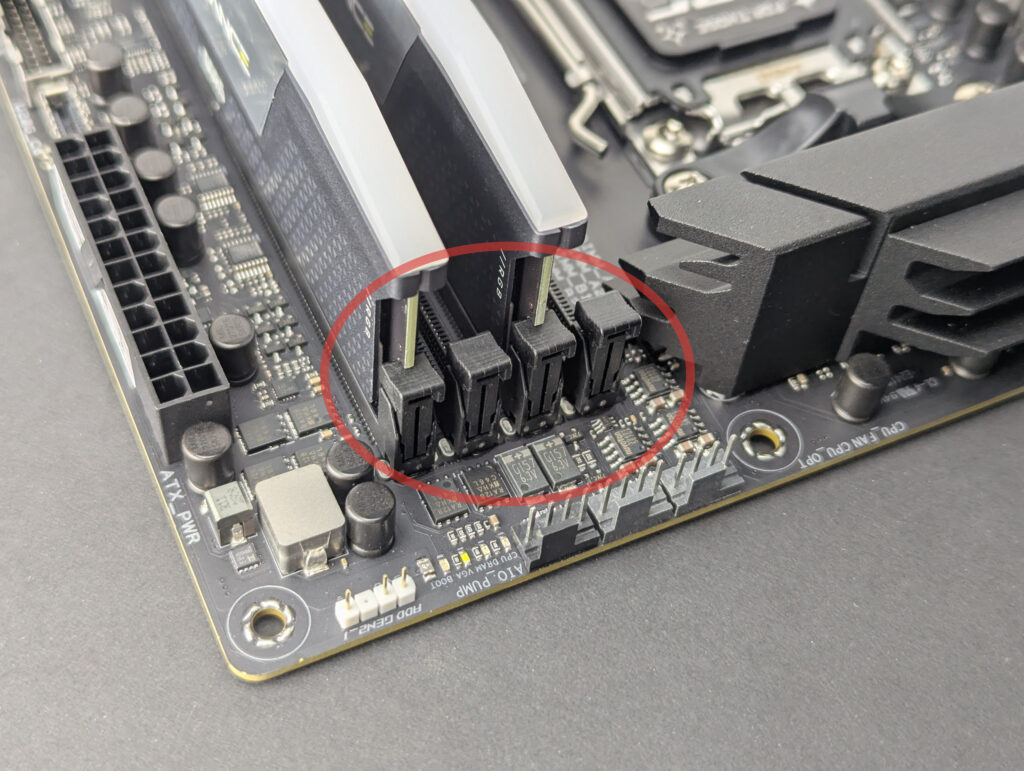
If you get a POST beep that indicates a memory error, it is most likely a case of your RAM not being seated correctly. The best course of action is to remove your RAM sticks, check for any damage to the pins and slot, and re-fit them into the correct slots, in the correct orientation. For Motherboards with four slots these are usually slots 2 and 4, but double check with your Motherboard manual.
TROUBLESHOOTING A VGA (GPU) ERROR
A Graphics Card error can mean a few things, there are few steps you can take to troubleshoot, we'll put them in the order of likelihood so you can go through the steps and hopefully sort out the problem!
1 - Incorrect Display Port Used - Most Motherboards will have a couple of display ports built in to the Motherboard, these are usually a mix of HDMI, DisplayPort and VGA. The problem here is that some higher-end CPUS don't have integrated graphics build in to them, rendering these ports useless. If you have a dedicated Graphics Card, make sure you are plugging all of your displays into the ports found lower down on the PC. If you don't have enough ports, look into getting adapters or HDMI to DisplayPort cables. If you don't have a dedicated Graphics Card, you'll have to use the integrated graphics ports on the Motherboard, before going to the next step consult your CPU manufacturer to make sure it actually has integrated graphics.
2 - Monitor Issues - If your Monitor is faulty, it is likely that your Motherboard will give you a GPU error POST code. The easiest way to test this is to try a different monitor and a different display cable, if you've got a TV with an HDMI input this is a good way to test it.
Sometimes you'll find you get a GPU Error beep code, but the system turns on and works as expected. Some higher end monitors can take a while to boot up, confusing the PC and making it think there's no monitor connected. If you get this POST code and everything works perfectly, there's nothing to worry about! If you turn on you monitor before turning on the PC, you may be able to stop the beeping, but not in all cases.
3 - Connection Issues - Higher-end GPUs will have a power connector plugged into them, this is to supply the additional power that can't be provided by the PCI slot. If this power connector isn't plugged in properly, it could cause a GPU error beep code.

Reminder: Before touching any internal components in your PC, make sure to unplug the power cable and touch something metal to discharge any static electricity before touching any components.
You'll want to unplug the power connector from the back of the PC, remove the side panel and make sure the power connectors are properly seated. You will see a clip on the top or bottom of the connector that should hold the cable in place.
If that doesn't solve the issue, or your GPU doesn't have an external power connector, it could be the connection between the Graphics Card and Motherboard. If it isn't already, remove the power connector from the back of the PC and remove the side panel. Remove the screws on the left-hand side of the GPU that connect the card to the case, once those are out you'll have to press down on the clip on the right-side of the Motherboard slot, this will release the card and it will be able to be removed. Once removed, check the slot and pins for damage and re-fit the card back into the slot, making sure the PCI slot clip clicks back into place, then you can put the screws back in on the left-hand side.
4 - GPU Issue - If none of the above has worked, you might have a hardware issue with your Graphics Card (or potentially Motherboard or Power Supply), if you have a spare GPU then now is the time to get that installed to verify the fault. If your PC is from UKGC, now's the time to get an RMA raised and return the PC for us to sort out, contact our UK based tech support team and we can help you through the process. If your PC isn't built by us we can still help out with diagnosis and repair, get in contact and we'll get you booked in!
TROUBLESHOOTING A CPU FAN, CPU TEMPERATURE or CPU OVER VOLTAGE ERROR
This is a fairly generic error, with a few different reasons for its beep codes, once again, we'll order our recommendations so you can work top to bottom with your troubleshooting.
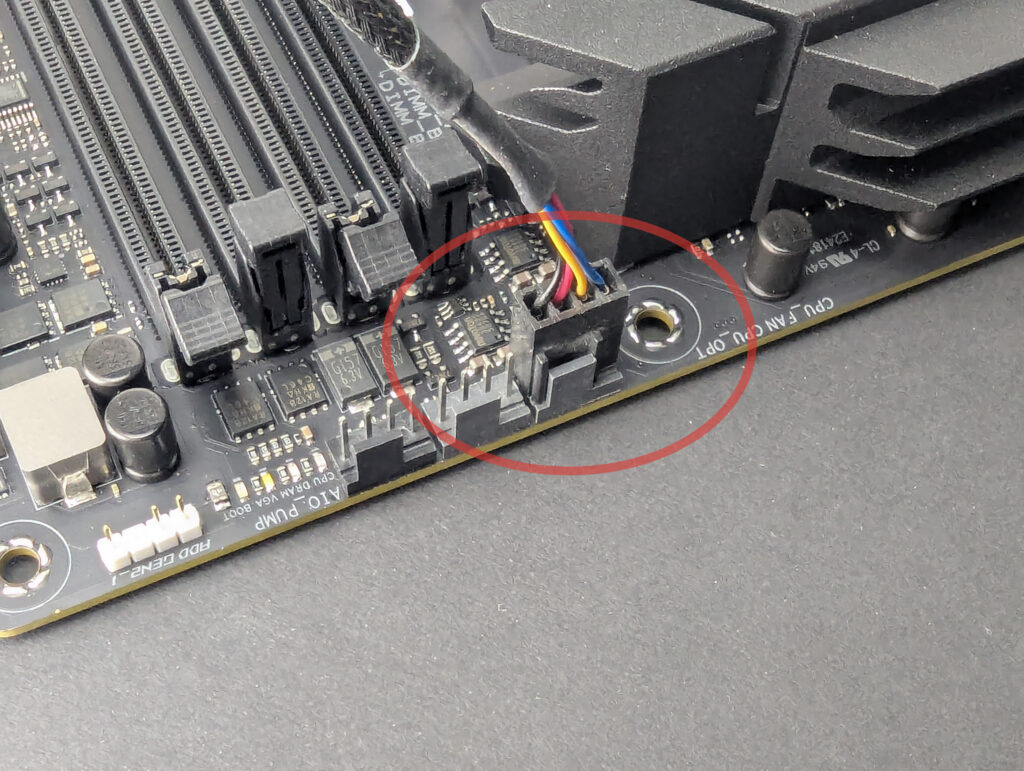
1 - CPU Fan Not Connected - This should be a fairly obvious one, if the CPU fan isn't spinning this will be the reason why, although for the most part, you should actually get a display for a short amount of time before the CPU overheats and turns itself off. If you can see that your CPU fan is not spinning, unplug the power, open up the side panel and make sure the fan is connected to the CPU_FAN header, usually on the top edge of the motherboard.
2 - CPU Cooler Not Installed Correctly - If your CPU Cooler isn't correctly installed, it could cause a POST error on boot. Much like the CPU Fan issues, this should still allow the system to boot before the CPU overheats. Ensure the cooler is mounted evenly and making full contact with the CPU. If you've recently built or upgraded the PC, it might be worth removing the cooler, cleaning the CPU, and reapplying thermal paste before reseating it.
3 - CPU Over Voltage Error - This is the most technical of the potential causes for this beep code. It means the motherboard has detected that the voltage being supplied to the CPU is outside of a safe range. This is a protective measure to prevent damage to your expensive processor.
Here’s how to troubleshoot it:
Reset Your BIOS/UEFI Settings (The Easy Fix): The most common cause is an unstable overclock or an incorrect voltage setting that was applied in the BIOS.
- Restart your PC and press the key to enter the BIOS/UEFI setup (commonly Del, F2, or F12).
- Look for an option called "Load Optimized Defaults," "Reset to Default," or "Load Setup Defaults."
- Save and exit the BIOS. This will reset all settings, including any overclocks, back to a safe, stable factory state. If the PC boots normally after this, the issue is resolved.
Check for Physical Power Issues:
- CPU Power Connector: Ensure the 4-pin or 8-pin CPU power connector at the top-left of your motherboard is plugged in firmly at both ends—on the motherboard and on the cable coming from the Power Supply Unit (PSU).
- Faulty Power Supply: In rare cases, a failing PSU can deliver unstable or incorrect voltages, triggering this error. If you have a spare PSU, you can try swapping it in to test.
If You Were Overclocking:
If you were manually overclocking your CPU, the settings you applied (especially the 'Vcore' voltage) were likely too aggressive. After resetting the BIOS as described above, if you wish to overclock again, do so more gradually and ensure you are following a reliable guide for your specific CPU model.
If you have gone through all these steps and the error persists, there may be a hardware fault with the motherboard's voltage regulation module (VRM) or the CPU itself. If your PC is from UKGC, contact our tech support team to start the diagnosis and RMA process.
3 - NO BEEPS????
As mentioned above, getting no beep at all can mean a few things, however it could simply mean your Motherboard doesn't have a speaker installed, or doesn't support one altogether. We're seeing more and more Motherboards move over to an LED system to diagnose a multitude of issues, we'll have an article for this in the future but in the meantime you'll want to consult your Motherboard manual to figure out what these LEDs mean.
If you've got no beeps and no power to the PC, it might be worth checking the PSU switch and the wall socket, we've all done it!
4 - WRAPPING UP
Hardware issues can be a frustrating nightmare, but your Motherboard's beep codes are there to take some of the guesswork out of troubleshooting. Still not sure what's wrong with your board? Contact our skilled team of engineers today and we can do the hard work for you!